
Check your website without a mouse: a short walkthrough
Follow a clear path through navigation, content and contact options to document keyboard obstacles your team can reproduce.
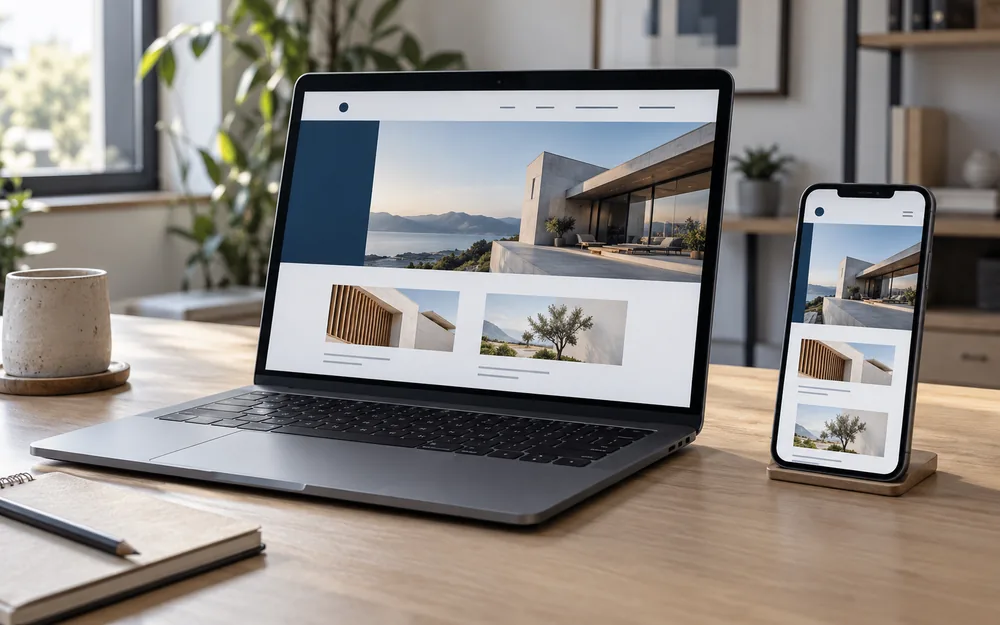
Choose a specific task
W3C WAI recommends making interactive elements accessible by keyboard. For a first internal check, we suggest a simple journey: find a service from the homepage and reach a contact option. Write down the goal before testing. This checks a real workflow instead of a random collection of buttons.
Put the mouse aside
Start after the page has loaded. Tab usually moves to the next focusable element, while Shift+Tab moves back. Enter activates links; buttons normally also respond to the space bar. Some browsers need a setting enabled for Tab to reach every control, so record your browser and keyboard settings. Check whether you can always see which element is currently selected.
Include menus and dialogs deliberately
Open an existing menu or information dialog and try to leave it again. Record any skipped control, invisible focus or navigation that gets stuck. Use only agreed test data in forms; do not send a real enquiry merely to test the interface. Repeat the route with a narrow window because a different navigation layout often appears there.
Describe problems so someone else can reproduce them
A useful entry might say: “Homepage, narrow window: opened menu, pressed Tab three times, focus then became invisible.” Add the expected behaviour, browser, date and responsible person. After a fix, repeat precisely that route. This exercise is a starting point, not a complete accessibility assessment: screen readers, magnification and other requirements need additional checks.